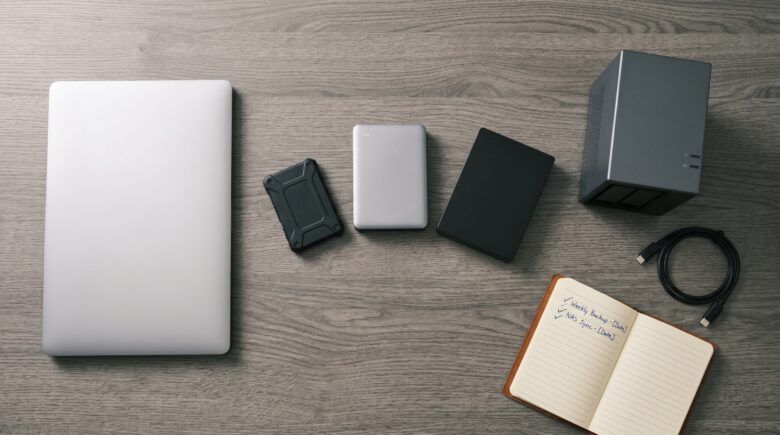

You have not lost data yet. That is not because your Personal Data Backup System works. It is because you have been lucky.
The drive clicks one morning and does not spin up. The phone goes in water and the screen goes black. The ransomware encrypts everything and the timer starts. The cloud account gets locked and support does not answer. These are not outlier events. They are the natural behavior of storage hardware, software, and the human tendency to assume tomorrow will be fine.
Data loss is not a catastrophe that happens to other people. It is an inevitability that has not arrived at your address yet. The only question is whether you have a functional Personal Data Backup System in place before it does.
This is not about paranoia. It is about observing how storage systems actually behave over time. Hard drives have a known annual failure rate between one and five percent depending on age and quality. SSDs fail less often but fail suddenly when they do. Cloud providers have service level agreements, not guarantees. Your own attention has a failure rate of approximately one hundred percent eventually.
A proper Personal Data Backup System is not one thing. It is a set of layers that each cover a different failure mode. One layer covers hardware death. One covers theft or physical destruction. One covers accidental deletion or corruption. One covers ransomware. One covers your own mistake. Any Personal Data Backup System that misses even one of these layers is incomplete.
Let us walk through what each layer actually does, where the gaps are, and how to close them without turning backup into a second job. By the end, you will have a clear Personal Data Backup System you can implement in stages.
The Observation
Most people have some version of a Personal Data Backup System. Maybe an external drive they plug in once a month. Maybe iCloud or Google Photos. Maybe an old hard drive in a drawer that used to be their main drive before they upgraded.
Run a quick mental inventory. If your laptop died five minutes from now, what would you lose? Not what you hope to keep. What would you actually be able to retrieve?
The photos from the last three years that have not synced yet. The tax document you downloaded and saved to Downloads. The folder of contracts from last quarter. The password manager export you made six months ago and never updated. The scans of personal documents. A real Personal Data Backup System would have all of these.
Now add a second failure. The cloud account you rely on gets locked because your credit card expired and you missed the emails. How many of those photos are still there? A robust Personal Data Backup System does not depend on a single provider.
Now add a third. The ransomware hits and encrypts everything attached to your computer, including the external drive that was plugged in. What survives? Only a Personal Data Backup System with offline or immutable copies.
The answer for most people is not nothing. But it is less than they think. And the missing pieces are never the ones they would have chosen to lose. That is why building a real Personal Data Backup System matters before the loss happens.
How Storage Systems Actually Fail
Storage systems fail in predictable patterns. Not random ones. Understanding the patterns tells you what kind of Personal Data Backup System actually protects against what.
Physical failure. Hard drives have moving parts. Motors fail. Heads crash. Platters scratch. SSDs have no moving parts but have limited write cycles and can die without warning. Drives typically fail early or late, not in the middle. The bathtub curve is real. Any Personal Data Backup System that ignores physical failure is not a system.
Logical corruption. The file system gets confused. A power loss during a write operation leaves a file half-written. A bug in the operating system scrambles directory structures. The data is still on the drive but the drive no longer knows where. A versioned Personal Data Backup System solves this.
Accidental deletion. You delete the wrong file. You empty the trash without checking. You reformat the wrong drive. These are not system failures. They are operator failures. The system does not care which kind. A good Personal Data Backup System keeps deleted files for a recoverable period.
Theft or loss. The laptop gets left in a coffee shop. The bag gets taken from the car. The house fire takes everything. Physically local copies are vulnerable to physically local problems. That is why any complete Personal Data Backup System includes an offsite component.
Ransomware. The malware encrypts every file it can reach. That includes your internal drive, attached external drives, and any network shares currently mounted. The backup that is plugged in and connected is not a Personal Data Backup System. It is another target.
Cloud provider issues. The account gets locked. The provider shuts down the service. The terms change and your data gets deleted after a notice you never saw. The sync fails silently for weeks and you never noticed. A vendor dependent Personal Data Backup System is fragile.
Sync propagation. This is the quiet killer. You use Dropbox, iCloud, or Google Drive as your Personal Data Backup System. You delete a file locally. The sync deletes it in the cloud. You get ransomware. The sync encrypts the cloud version. Sync is not backup. Sync is mirroring. Mirroring preserves mistakes. A real Personal Data Backup System preserves history.
What a Resilient Personal Data Backup System Actually Looks Like
A resilient Personal Data Backup System has three independent copies. Not two. Three.
The 3-2-1 rule is not marketing. It is structural. Three total copies of your data. Two different storage media. One copy offsite. Any Personal Data Backup System that does not meet this baseline is incomplete.
The logic is simple. If you have one copy, you have zero. If you have two copies on the same device, you have one. If you have two copies in the same building, you have one against fire or theft. The third copy, offsite and on different media, closes the last gap. That is the difference between a casual habit and a real Personal Data Backup System.
Three copies sounds like a lot. But one of them is your live working data. That is the copy on your laptop or phone. You already have that. You are just acknowledging it as your first copy instead of your only copy. That is the first step toward a functional Personal Data Backup System.
The second copy is local and separate. An external drive. A NAS on the same network. Something that is not your main device but is physically near it. A good Personal Data Backup System makes this copy automatically.
The third copy is offsite. Cloud storage is the usual answer because it is fireproof, theft-proof, and geographically separate. A complete Personal Data Backup System includes this layer.
That is the skeleton. Now let us put meat on it.
Local Backup Layer One: External Drives
The simplest local component of any Personal Data Backup System is an external hard drive. You plug it in. You run backup software. It copies your files. You unplug it and put it somewhere not attached to your computer.
The failure mode this covers is drive death on your main computer. It also covers accidental deletion if your backup software keeps versions. It does not cover fire, flood, or theft because it is in the same building. And it does not cover ransomware if you leave it plugged in. So a Personal Data Backup System built only on external drives is incomplete.
The critical operational rule that most people ignore: the drive must not stay connected. Ransomware that finds an attached external drive will encrypt it alongside your main drive. A drive that is plugged in is not a Personal Data Backup System. It is an extension of the live system.
So the pattern is mechanical. Plug in. Run backup. Eject. Put drive away. Do this weekly. Automation helps but only if the drive gets reconnected regularly. A scheduled Personal Data Backup System works better than a manual one.
For the drive itself, standard configurations use a reputable external SSD or HDD. SSDs are faster and survive drops better. HDDs are cheaper per terabyte. Both work as long as they are not the only copy in your Personal Data Backup System.
One wry observation about external drives. People buy them with good intentions. Then the drive sits in a drawer for eight months. Then they plug it in and discover it has been dead for seven of those months. Drives fail whether you use them or not. Regular connection is how you discover failure while it still matters. A living Personal Data Backup System requires attention.
Local Backup Layer Two: Network Attached Storage
A NAS is a small computer dedicated to holding hard drives and serving files over your network. It sits in a closet or on a shelf. It runs continuously. It can back up multiple computers automatically. For households with several machines, a NAS based Personal Data Backup System makes sense.
The advantages over a single external drive are real. Multiple drives inside the NAS can be configured for redundancy so one drive failing does not lose data. The NAS can run backup software on a schedule without you remembering to plug anything in. It can keep version history going back weeks or months. And it can serve as a centralized location for media, documents, and other files you want accessible from any device in the house. These features make a NAS a strong core for any Personal Data Backup System.
The fragility. A NAS is still in your home. Fire, flood, or theft takes it out alongside your main computer. Power surges can kill it. Someone with physical access can steal it or damage it. And ransomware that spreads through your network can encrypt NAS shares if they are mounted as network drives. Therefore, a NAS alone does not constitute a complete Personal Data Backup System.
So a NAS is not a complete solution. It is a significant upgrade over a single external drive, particularly for versioning and automation. But it still needs an offsite backup to close the physical risk. Any responsible Personal Data Backup System that includes a NAS must also include cloud backup.
Typical setups for home use include two-bay or four-bay NAS devices. Two drives configured as mirrored storage. Four drives configured as RAID 5 or RAID 6 for more capacity with one or two drive failure tolerance. The brands commonly used are Synology and QNAP. Both have built in backup software that can push copies to cloud storage as part of a layered Personal Data Backup System.
The quiet thing about NAS devices. They are surprisingly loud to someone who has never owned one. The drives tick. The fans spin. Do not put one in a bedroom unless you sleep like the dead. Your Personal Data Backup System should not keep you awake.
Offsite Backup Layer: Cloud Storage
Cloud backup is the third copy in a proper Personal Data Backup System. It lives somewhere else. It is fireproof, theft-proof, and geographically separate from your home. Without this layer, your Personal Data Backup System is vulnerable to local disasters.
Important distinction here. Cloud sync services like Dropbox, Google Drive, and iCloud are not a Personal Data Backup System. They are synchronization. Delete a file on your laptop and it deletes from the cloud. Get ransomware and the encrypted versions sync up. Sync preserves your mistakes. A real Personal Data Backup System gives you a point in time you can return to.
Cloud backup services like Backblaze, CrashPlan, or IDrive work differently. They keep versions. They retain deleted files for a period you can configure. They do not automatically delete something just because you deleted it locally. That is the functional difference between sync and a genuine Personal Data Backup System.
The typical setup runs silently in the background. The backup software continuously or daily uploads changed files. You do not think about it. That is the point. A Personal Data Backup System that requires your attention every day will fail.
The trade offs. Upload speed matters for the initial backup. The first backup of several terabytes can take days or weeks on residential internet. Most services offer a seed drive option where they mail you a hard drive to do the initial copy locally. Use that if your data is large. Do not let the initial upload become a barrier to having a real Personal Data Backup System.
Cost is not nothing but is low relative to the value of the data. Approximately five to ten dollars per month per computer. Some services charge per device. Some charge per amount of storage. Family plans exist. Business plans with longer version history exist. Consider this the operating expense of your Personal Data Backup System.
The real constraint is not money. It is whether you trust a third party with your data. Encrypted backup solves that. Most services offer client side encryption where your data is encrypted before it leaves your computer. The provider never sees the plain text. The key exists only on your side. Lose the key and lose the data. That is the trade off. But a Personal Data Backup System without encryption is not private.
A common real world configuration uses Backblaze for personal unlimited backup with private encryption key enabled. Another uses CrashPlan for small business with longer retention. A third uses IDrive for users who want to back up multiple computers and also external drives. Any of these can serve as the cloud layer in your Personal Data Backup System.
Versioning: The Layer People Forget
Backup without versioning is only partial protection. It protects against drive failure. It does not protect against a file that was quietly corrupted six months ago and you only noticed today. A mature Personal Data Backup System includes versioning.
Versioning means keeping multiple historical copies of each file. Not just the most recent version. Last week’s version. Last month’s version. The version from before the corruption happened. Without versioning, your Personal Data Backup System only protects against the last failure, not the one before that.
The standard practice is not to keep every version forever. That is storage without bounds. Instead, rotate. Keep hourly versions for a day. Daily versions for a week. Weekly versions for a month. Monthly versions for a year. Or some variation that matches how often your data changes and how far back you need to go. Any reasonable Personal Data Backup System implements some form of rotation.
NAS devices typically handle this natively. Synology has Snapshot Replication. QNAP has Snapshots. Both allow you to take point in time snapshots of the entire file system that are read only and cannot be deleted by ransomware. Rolling back to a snapshot takes minutes. This is a powerful feature in a NAS based Personal Data Backup System.
Cloud backup services also handle versioning. Backblaze keeps versions for thirty days by default. You can pay for extended version history up to a year. CrashPlan keeps deleted files indefinitely by default, which is unusual and useful. Check the versioning policy before choosing the cloud layer of your Personal Data Backup System.
Local external drive backups can also do versioning if the software supports it. Time Machine on macOS is the gold standard for local versioned backups. It keeps hourly backups for the last twenty four hours, daily for the last month, and weekly for all previous months. Windows native backup is less robust. Third party software like Macrium Reflect or Veeam Agent fills the gap. A Windows based Personal Data Backup System needs one of these.
The fragility most people do not consider. Versioning only works if the first backup was taken before the corruption happened. That sounds obvious. But many people start backing up after they have already lost something. The day to start versioning is not the day you discover a corrupted file. It is the day you set up your Personal Data Backup System.
Automation: The Only Way It Actually Works
Manual backup does not work. Not because people are lazy. Because life is full of competing priorities and the drive is across the room and the cable is behind the desk and you are tired and it will still be fine tomorrow probably. A manual Personal Data Backup System is an oxymoron.
So the system must run without you.
For local backups, automation means scheduled tasks. The external drive gets plugged in on a schedule. Or better, it stays connected but only mounts for backup and then unmounts automatically. Or best, a NAS runs backups on a schedule without any human action. An automated Personal Data Backup System is the only kind that survives contact with real life.
For cloud backups, automation means continuous or daily background uploads. The software runs at startup. It watches for file changes. It uploads in the background using idle bandwidth. You never see it. That is the design goal of a hands off Personal Data Backup System.
The single most common failure in any Personal Data Backup System is not hardware failure. It is notification fatigue. The backup software sends a warning that the drive is full. You dismiss it. It sends another warning that the backup has not run in thirty days. You dismiss it. Six months later you discover nothing has been backed up since the first week.
So build in monitoring. Not just alerts. Actual checks that you will see. A weekly email report. A dashboard you glance at. A text message if the backup fails two days in a row. Whatever gets your attention before weeks turn into months. A monitored Personal Data Backup System is a working one.
One quiet observation about automation. It reveals the difference between a system that is designed to work and a system that is designed to be set up and forgotten. The latter does not exist. All systems require maintenance. The question is whether the maintenance happens on your schedule or in an emergency. Your Personal Data Backup System needs both automation and occasional human attention.
How Ransomware Changes the Calculus
Ransomware is not a theoretical threat. It is common enough that backup design must account for it. Any Personal Data Backup System created today must assume ransomware will attempt to encrypt it.
The specific problem ransomware creates is that it encrypts files it can reach. Including backups that are connected and writable. So the backup you thought you had becomes encrypted alongside your live data. A naive Personal Data Backup System fails here.
The solution is an immutable backup or an air gap.
Immutable backup means files cannot be modified or deleted for a set period. Even by an administrator. Even by the ransomware that has full access. Cloud backup services increasingly offer this. Backblaze has Object Lock. Wasabi has Immutable Buckets. Once a backup is written, it cannot be changed for a configured retention period. Ransomware cannot encrypt what it cannot write to. An immutable Personal Data Backup System is ransomware resistant.
Air gap means the backup is physically or logically disconnected from the live system. An external drive that is unplugged and in a drawer is an air gap. A NAS that only spins up for backup and then shuts down network access is an air gap. A tape drive with offline tapes is an air gap. The cost is convenience. The benefit is ransomware cannot reach what is not connected. An air gapped Personal Data Backup System is traditional but effective.
A standard configuration for ransomware resilience uses both. Cloud backup with immutability for the offsite copy. Rotating external drives with offline storage for the local copy. The live system gets backed up to the NAS. The NAS backs up to cloud. And once a month, an external drive backs up the NAS and gets disconnected and stored. That is a defensible Personal Data Backup System against modern threats.
That sounds like overkill until you have seen a network where every single file has a .encrypted extension and the timer says seventy two hours. Then your Personal Data Backup System becomes the most important thing you own.
What to Back Up
Not everything needs backup. Operating system files can be reinstalled. Applications can be redownloaded. The settings and configurations are sometimes worth saving but often not. A focused Personal Data Backup System prioritizes what matters.
The functional approach is to back up what you cannot replace.
Documents. Photos. Videos. Music you created. Financial records. Scanned personal documents. Email archives if you store them locally. Password manager exports. Encryption keys. Code repositories. Project files. Anything that exists only on your drives. These are the core of any Personal Data Backup System.
What you can skip. The operating system itself. Most applications. The contents of your Downloads folder. Temporary files. Cache directories. Movies you streamed. Music you did not create. Games you can reinstall. A Personal Data Backup System that backs up everything is wasteful.
The boundary case is configuration. Your carefully tuned development environment. Your browser bookmarks and extensions. Your application settings. These are replaceable but annoying to recreate. Some backup systems let you back up entire system images including configuration. That is fine if you have the storage. Just know that restoring a full system image is different from restoring individual files. Most home users do not need system image backup. They need a file level Personal Data Backup System.
The hidden cost of backing up everything is not storage. It is time. The more data you back up, the longer restores take. And restore is where the Personal Data Backup System either works or fails. Focus on the irreplaceable. Let the rest be replaceable with effort.
Testing the Restore
This is the step almost everyone skips. They set up their Personal Data Backup System. They see the success message. They never test the restore.
Then the drive fails and they go to restore and discover the backup was incomplete. Or corrupted. Or the encryption key is lost. Or the software version changed and the old backup format is not readable. An untested Personal Data Backup System is not a system. It is a gamble.
Test the restore. Not once. Regularly.
Pick a file you do not need. Delete it. Restore it from backup. Does it come back? Good. Now try a folder. Now try a different date version. Now try a full restore to a different drive. Only after these tests do you have a confirmed Personal Data Backup System.
Do this every quarter. Or every six months. The schedule does not matter as much as the act. A backup that has never been restored is not a backup. It is a file that looks like a backup. Your Personal Data Backup System is only as good as your last successful restore test.
The dry humor here is unavoidable. People spend hours researching the perfect backup system. They read reviews. They compare drive speeds. They agonize over cloud providers. Then they never check whether any of it actually works. The perfect Personal Data Backup System that fails on restore is not a system. It is performance art.
Putting It All Together
A complete Personal Data Backup System has four layers working together.
Layer one is the live data on your primary device. That is not backup. It is the original. But it is the first copy in the three copy rule.
Layer two is local backup on an external drive or NAS. This covers drive failure and accidental deletion. It is fast to restore from. It is vulnerable to physical loss and ransomware if not air gapped. A good Personal Data Backup System mitigates those risks.
Layer three is offsite backup to cloud storage. This covers fire, theft, and regional disasters. It is slower to restore from. It is protected from local physical threats. A complete Personal Data Backup System includes this layer.
Layer four is versioning. This covers corruption, the file you saved over, the data you deleted six months ago and now need. It lives on both local and cloud backup if configured correctly. A mature Personal Data Backup System has versioning everywhere.
The automation layer sits underneath all of this. Schedules. Continuous background uploads. Monitoring. Alerts. The Personal Data Backup System runs without you.
The restore test sits above it. Proof that the Personal Data Backup System works.
The Actual Implementation Path
Start small. Do not try to build the entire Personal Data Backup System in a weekend. You will get overwhelmed and abandon it.
Week one. Sign up for a cloud backup service. Backblaze or CrashPlan or IDrive. Install it. Let it run its initial backup. That alone puts you ahead of most people. If your house burns down next week, your data lives somewhere else. You now have a basic Personal Data Backup System.
Week two. Buy an external drive. At least twice the size of your internal drive. Run Time Machine on Mac or Veeam Agent on Windows. Configure it to run weekly. Eject the drive between backups. Your Personal Data Backup System now has a local layer.
Week three. Configure versioning. On the cloud backup, extend the version history. On the local backup, confirm it keeps older versions. The default settings are usually fine. Just verify. Your Personal Data Backup System now protects against corruption.
Week four. Test a restore. Delete one old photo you have elsewhere. Restore it from cloud. Restore it from the external drive. Both should work. If not, troubleshoot now. Your Personal Data Backup System is now confirmed.
From there, decide if you want a NAS. The NAS is not mandatory. It is an upgrade for people with multiple computers or large media collections or a desire for more control. If you have one computer and less than two terabytes of data, the external drive plus cloud is a sufficient Personal Data Backup System.
If you have multiple computers, a NAS simplifies things. Each computer backs up to the NAS. The NAS backs up to cloud. One set of cloud credentials. One versioning policy. One restore point for everything. That is an elegant Personal Data Backup System for families or small offices.
The NAS path is more expensive upfront. Several hundred dollars for the device plus drives. The operational cost is lower than multiple cloud subscriptions for multiple computers. And the local restore speed is much faster than pulling from cloud. For some households, a NAS based Personal Data Backup System is the right answer.
System Components (Recommended Tools & Setups)
Cloud Backup Services
- Backblaze Personal Backup — commonly used unlimited backup for one computer with optional private encryption key and extended version history
- CrashPlan for Small Business — typical setup for users who need indefinite file retention and backup for external drives
- IDrive — common choice for users backing up multiple computers and external drives under one account
Local Backup (External Drives)
- Samsung T7 Shield (SSD) — commonly used portable SSD with good durability, typical for weekly manual backups
- Western Digital My Passport (HDD) — standard external hard drive for larger capacities at lower cost per terabyte
- Seagate Expansion Desktop — typical setup for desk bound backup drives where portability is not required
Local Backup (NAS)
- Synology DiskStation DS223 or DS423 — commonly used two bay or four bay NAS for home backup with built in Snapshot Replication for versioning
- QNAP TS 233 or TS 433 — typical alternative to Synology, comparable features for home use
- Western Digital My Cloud Home — simpler NAS option for users who primarily want backup without advanced configuration
Backup Software
- Apple Time Machine (built into macOS) — standard local backup software with automatic hourly versioning for external drives and NAS
- Veeam Agent for Windows (free) — commonly used Windows backup with full image and file level options
- Macrium Reflect — typical setup for Windows users who need advanced imaging and scheduling
- Arq Backup — common choice for backing up to multiple cloud providers or NAS with client side encryption
NAS Drives
- Seagate IronWolf — commonly used NAS specific hard drive with vibration protection and health monitoring
- Western Digital Red Plus — typical standard for NAS drives, CMR based for consistent performance
- Synology HAT3300 — standard drive certified for Synology systems, not required but supported
Versioning and Snapshot Tools
- Synology Snapshot Replication (built into DSM) — typical setup for point in time read only snapshots that resist ransomware
- QNAP Snapshots (built into QTS) — commonly used equivalent to Synology snapshots
- Backblaze Extended Version History — standard add on for keeping file versions up to one year
Encryption for Local Backups
- Veracrypt (open source) — commonly used for creating encrypted containers on external drives
- Cryptomator — typical setup for client side encryption before files go to cloud storage
A quiet observation about data. The things people actually cannot lose are rarely the things they would pay to insure. A wedding photo has no replacement cost you could name. A decade of tax returns has no receipt. A folder of letters from a dead parent is worth more than the drive it sits on. But insurance does not cover those. Only a Personal Data Backup System does.
That is what a backup system is. Not a technology purchase. A recognition that some things cannot be replaced, and a small amount of effort now is the difference between having them and not. The drives will fail. The cloud accounts will have problems. You will make mistakes. The Personal Data Backup System accounts for all of that. It does so not because it is clever. Because it is redundant. Redundancy is not inefficiency. It is the only honest response to the fact that single points of failure always break. Eventually. Usually on a Tuesday.
